


It’s no longer a secret that visual content like images play a powerful role in delivering concepts and narratives. Text content alone can often fail to captivate readers. This is why incorporating relevant images into blog posts and pages has become mandatory.
WordPress allows you to add images to your site in numerous ways. One of the most effective ways to do this is to add images in columns and rows. It lets you present your images in an organized way.
In this blog post, we’ll show you multiple ways how to display WordPress images in Columns & Rows.
- Method 1: Using the Column Block (Best for full manual control and custom layouts)
- Method 2: Using the Gallery Block (Best for simple image grids with minimal styling)
- Method 3: Using the Galleryberg Block (Best for advanced layouts with lightbox and customization)
- Method 4: Using the Tableberg Plugin (Best for structured image grids like pricing, schedules, or product tables)
Create Beautiful Tables
With Block Editor

Method 1: Using the Column Block
WordPress has a default column block. You can add many more blocks inside it, including the image block. Here’s the guide.
Step 01: Add the Gutenberg Column block
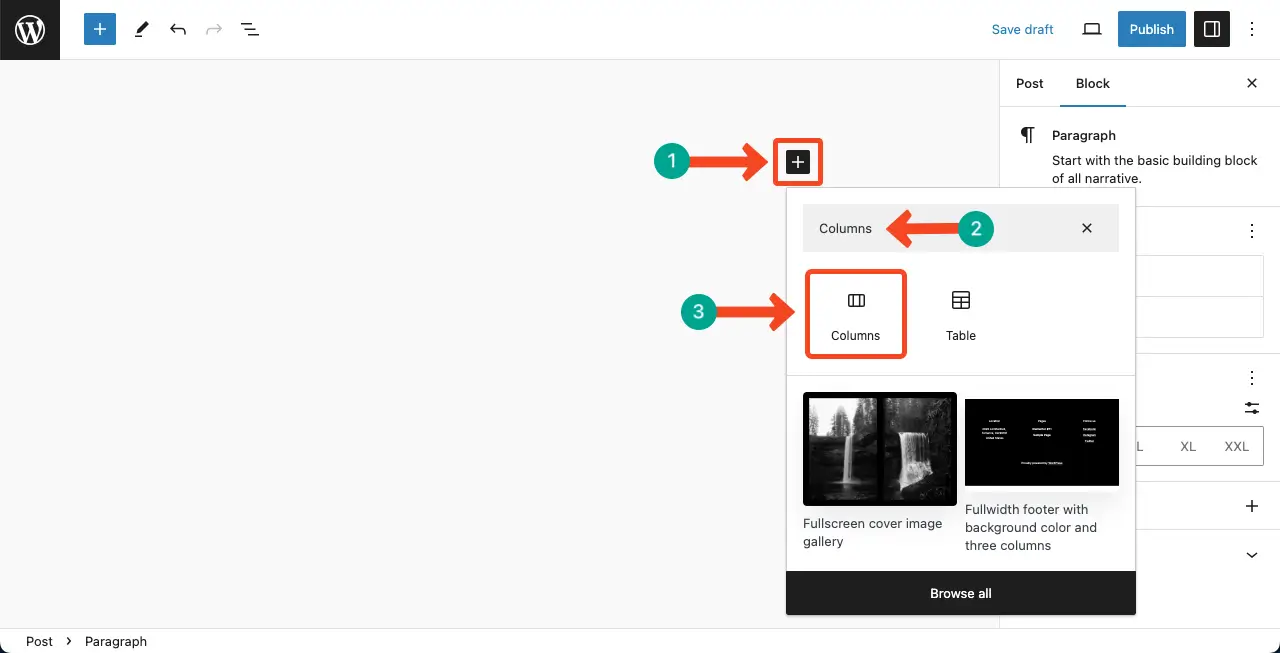
Find and add the Column block by clicking the plus (+) icon on the editor.
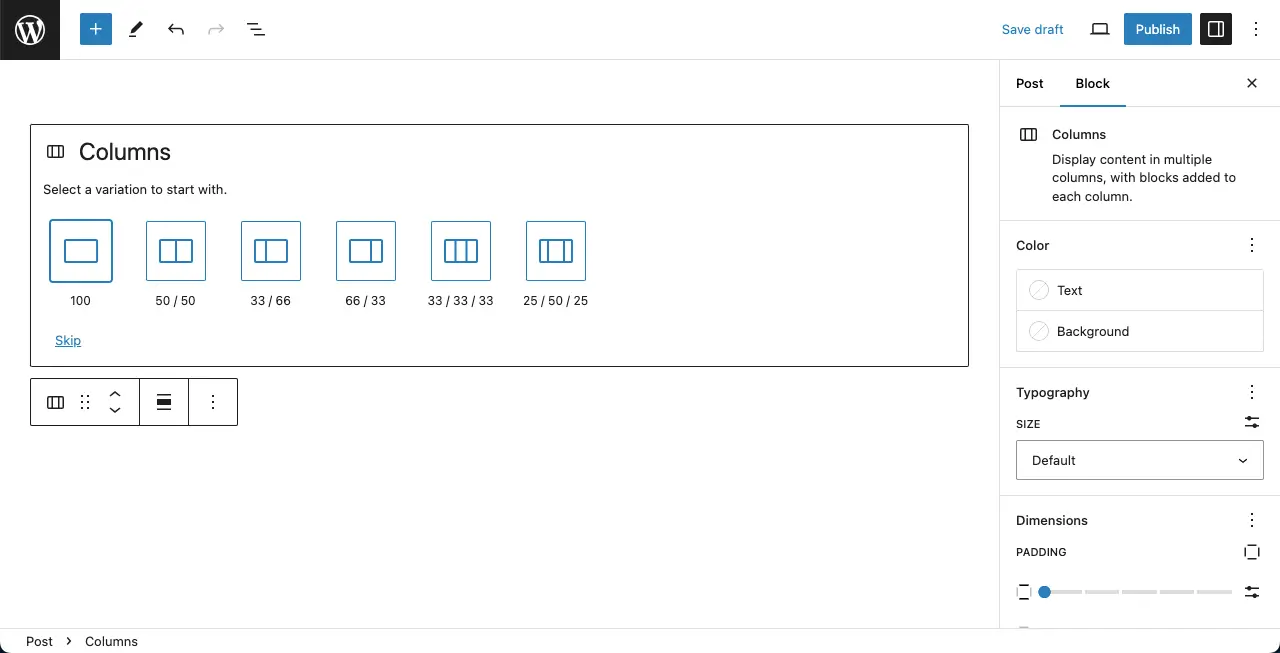
Select the number of column variations you want to add to the column block. For this tutorial, we’ll select the 50/50 column variation.
Step 02: Add the Image Block to the Column Block
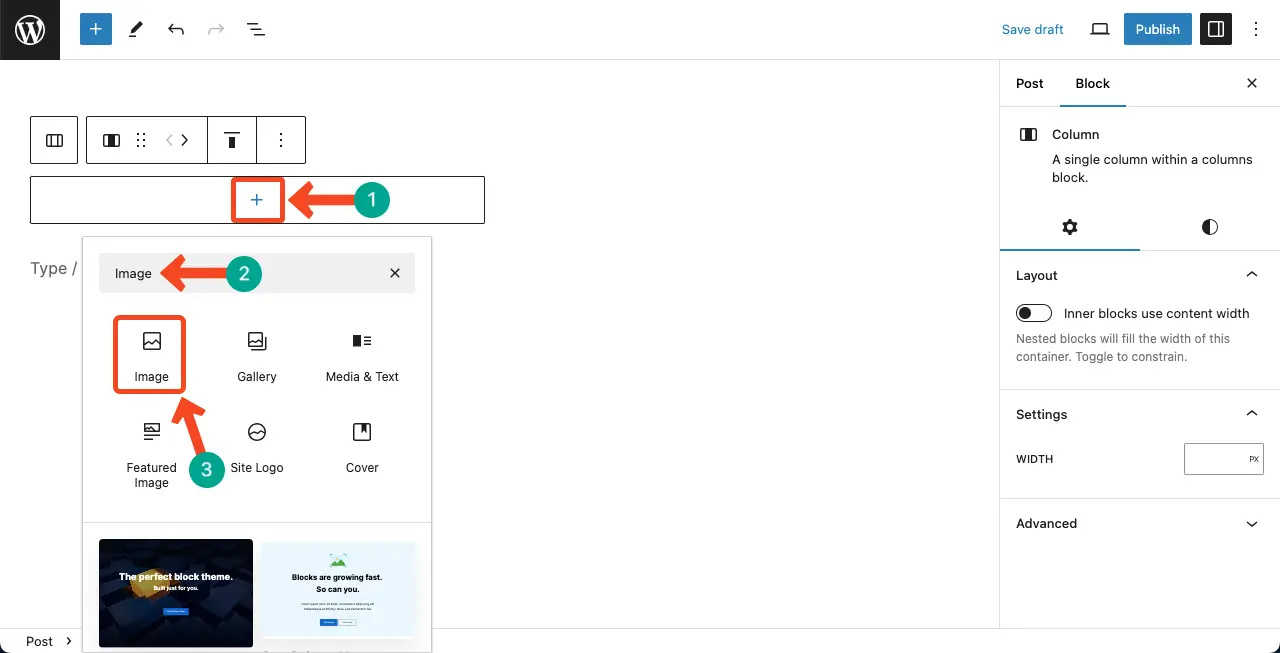
As we said, you can other Gutenberg blocks within the column block. Now, click the plus (+) icon within the column. Find and add the Image block to it.
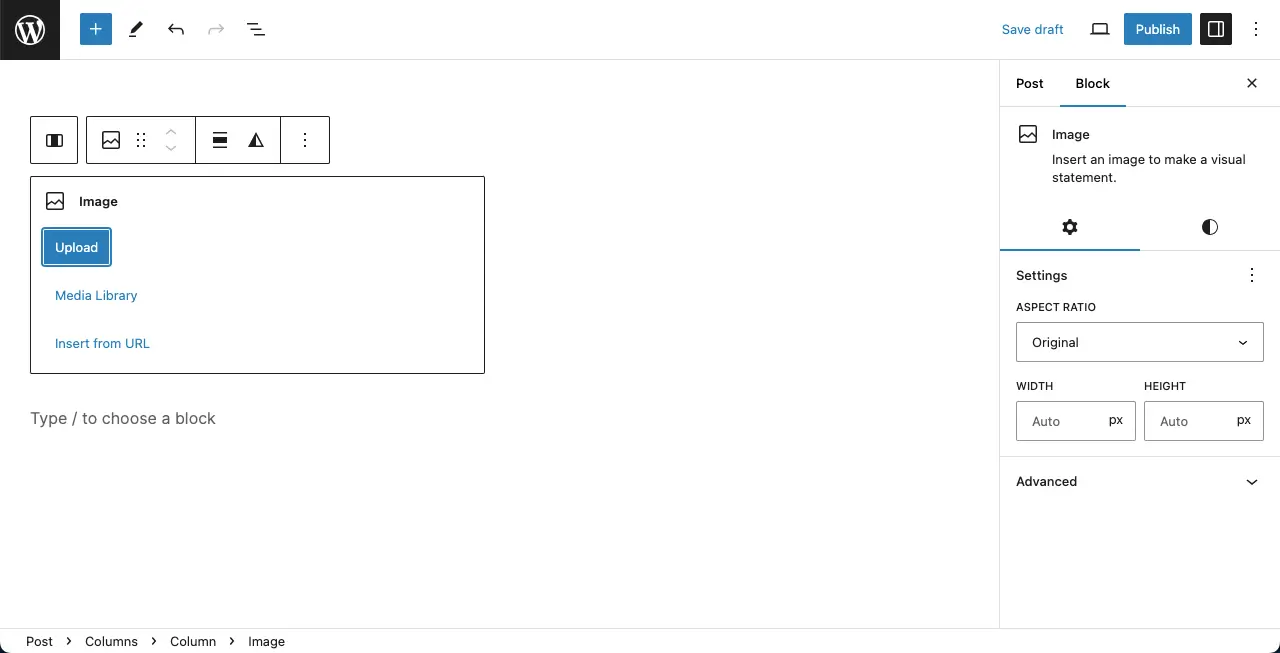
You can now add images from the Media Library or the local drive. Do it as you wish.
Step 03: Stylize the Image Block within the Column Block
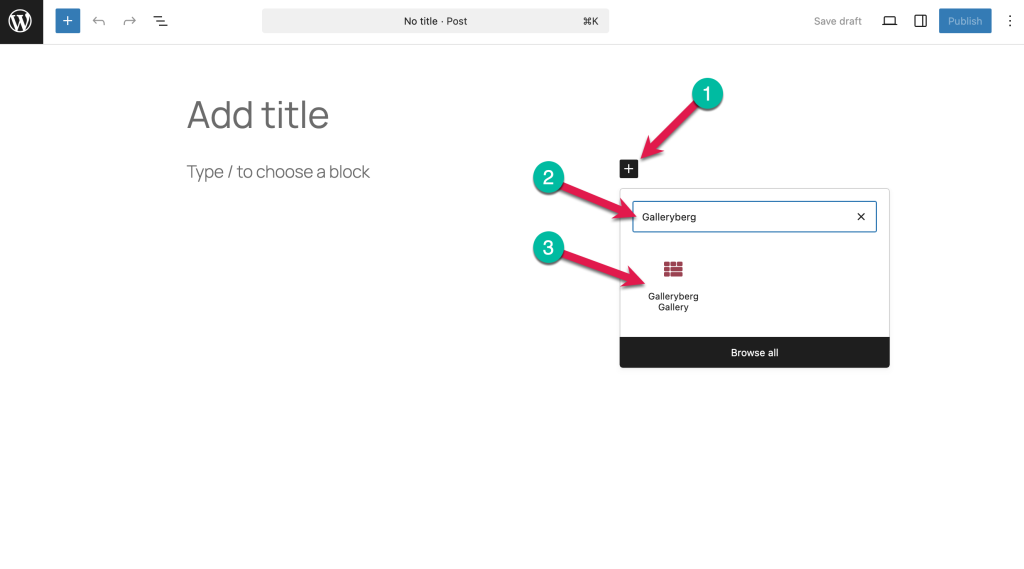
You can see we have added an image. You can align it centrally using the alignment option on the toolbar. Resize the image holding the edge-circle icon. Finally, you can stylize it more using options under the Style tab.
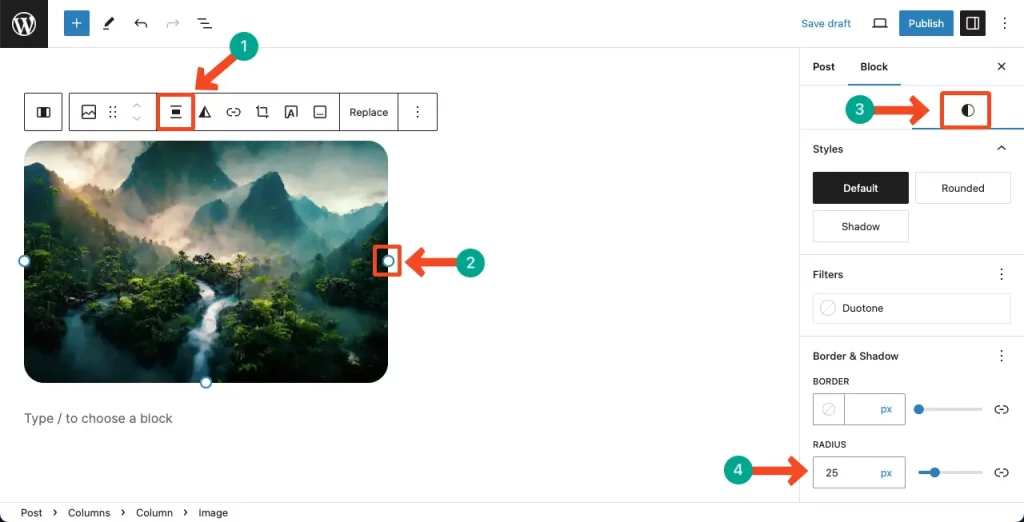
In the same way, add an image to the other column as well.
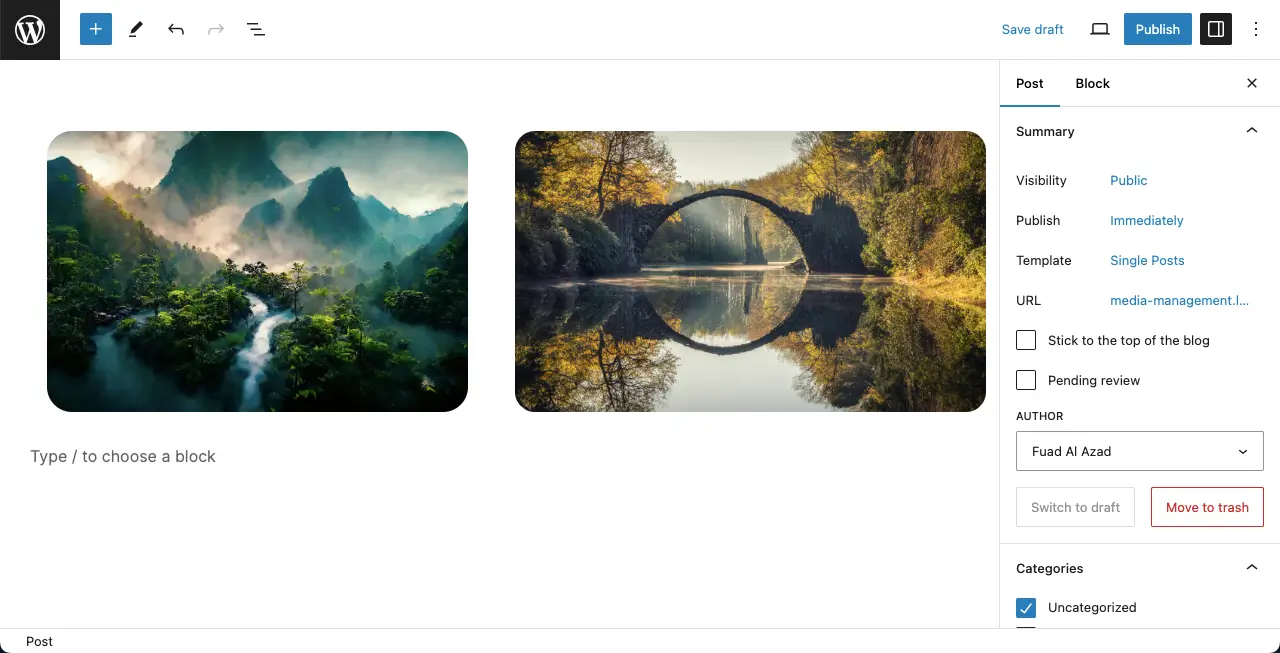
Method 2: Using the Gallery Block
WordPress has a default Gallery block by which you can add multiple images with the same block layout.
Step 01: Add the Gallery Block
Like the above method, find and add the Gallery block to the editor.
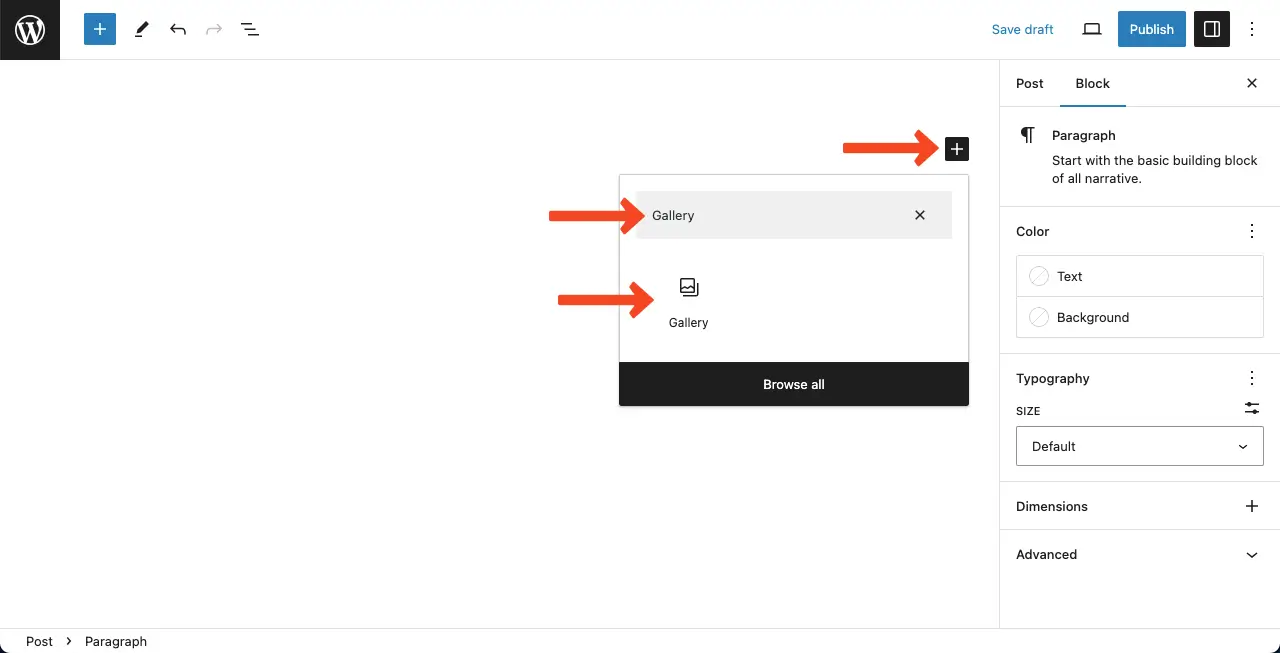
You’ll be allowed to upload images from your local drive or the Media Library. In this tutorial, we’ll upload images from the Media Library.
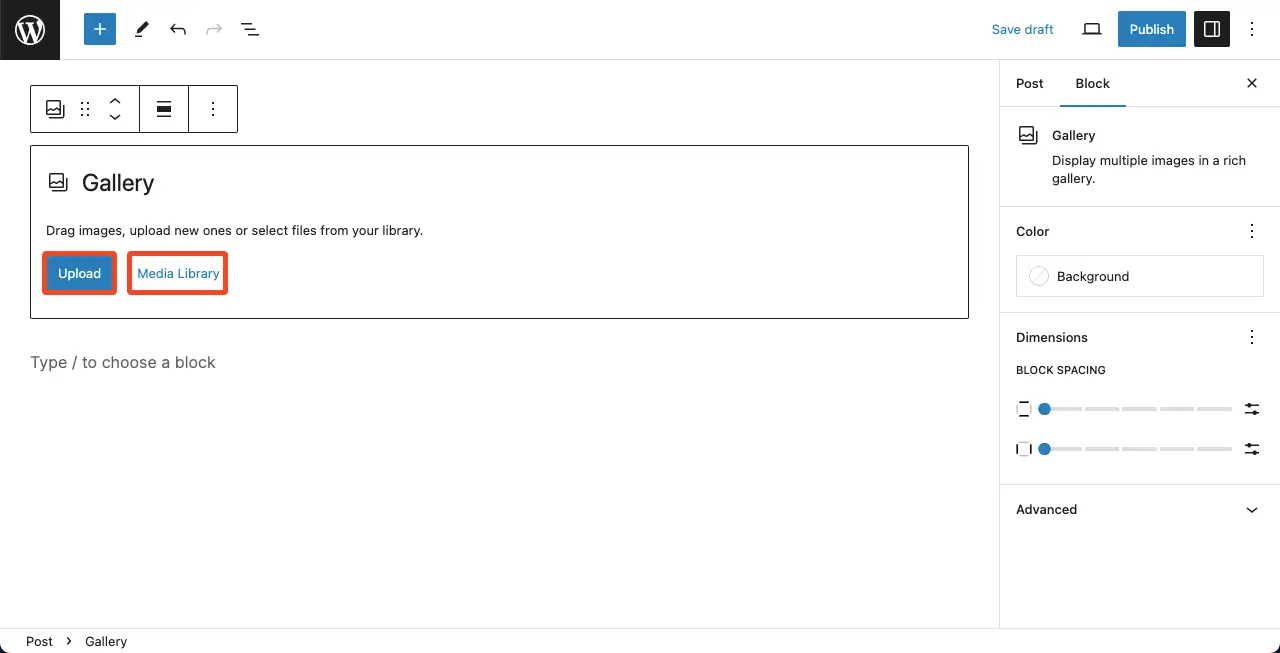
Step 02: Select and Upload Images
Select the images you want to upload to the Gallery block. You can select as many images as you want. Once done, click the Create a new gallery button.
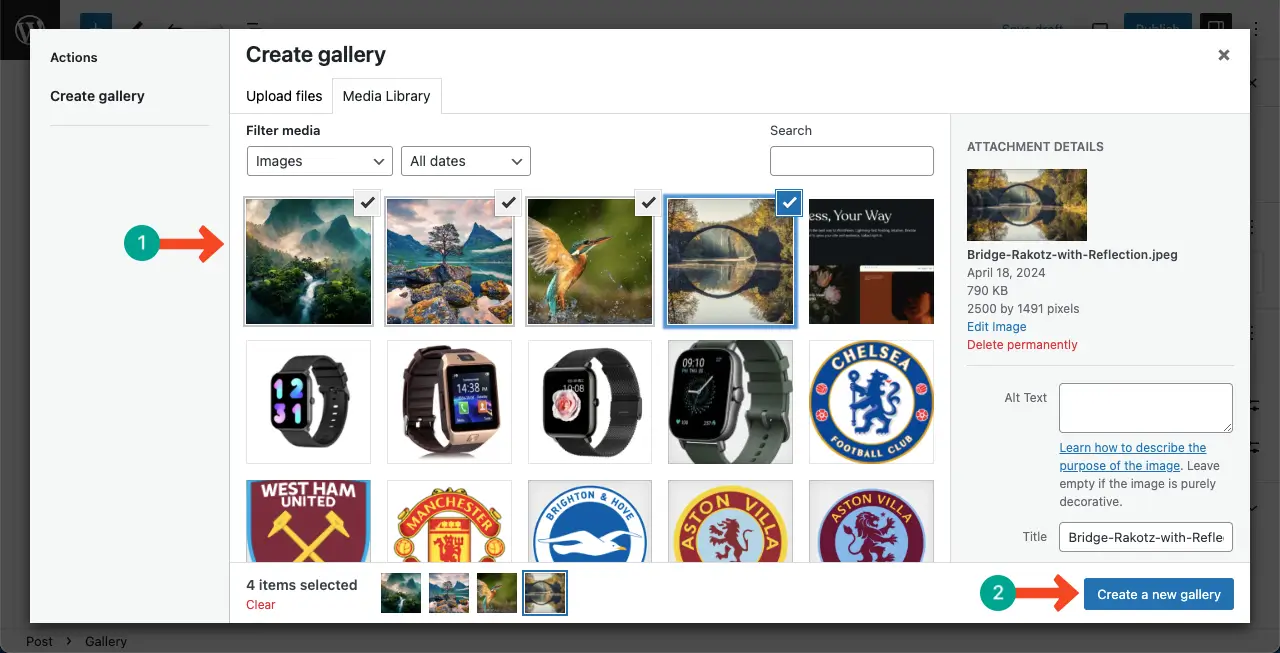
You can add captions for each image if you want. No problem if you don’t add anything. Hit the Insert Gallery button at the end.
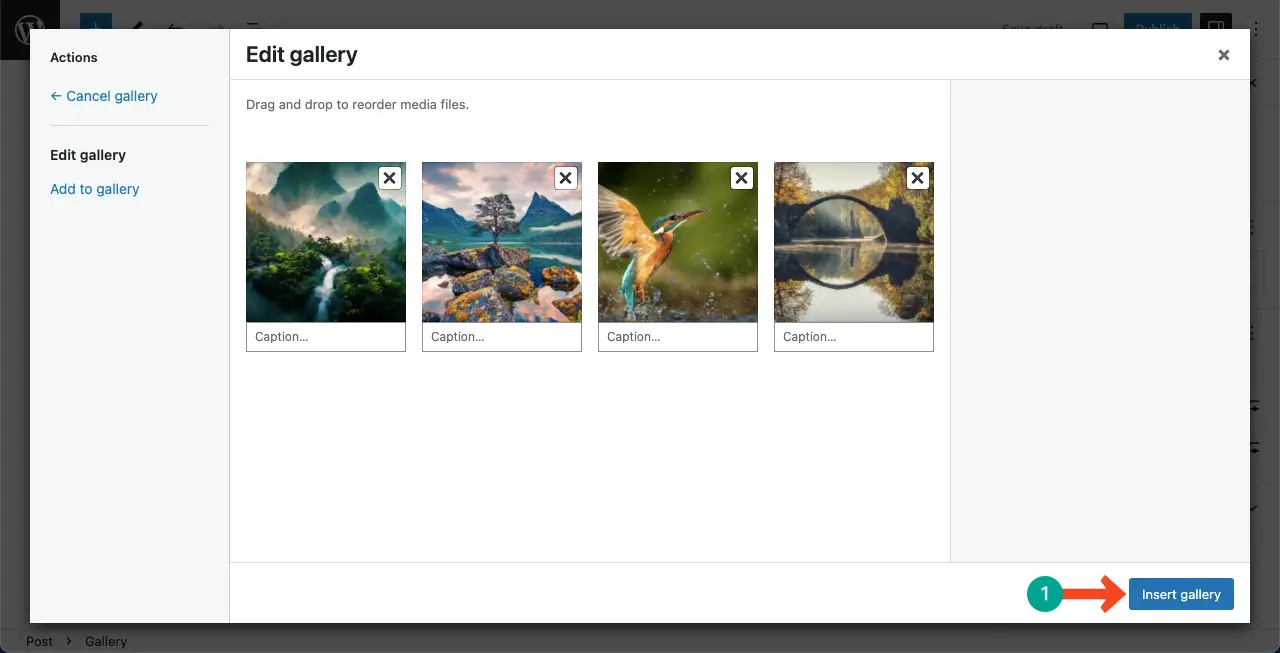
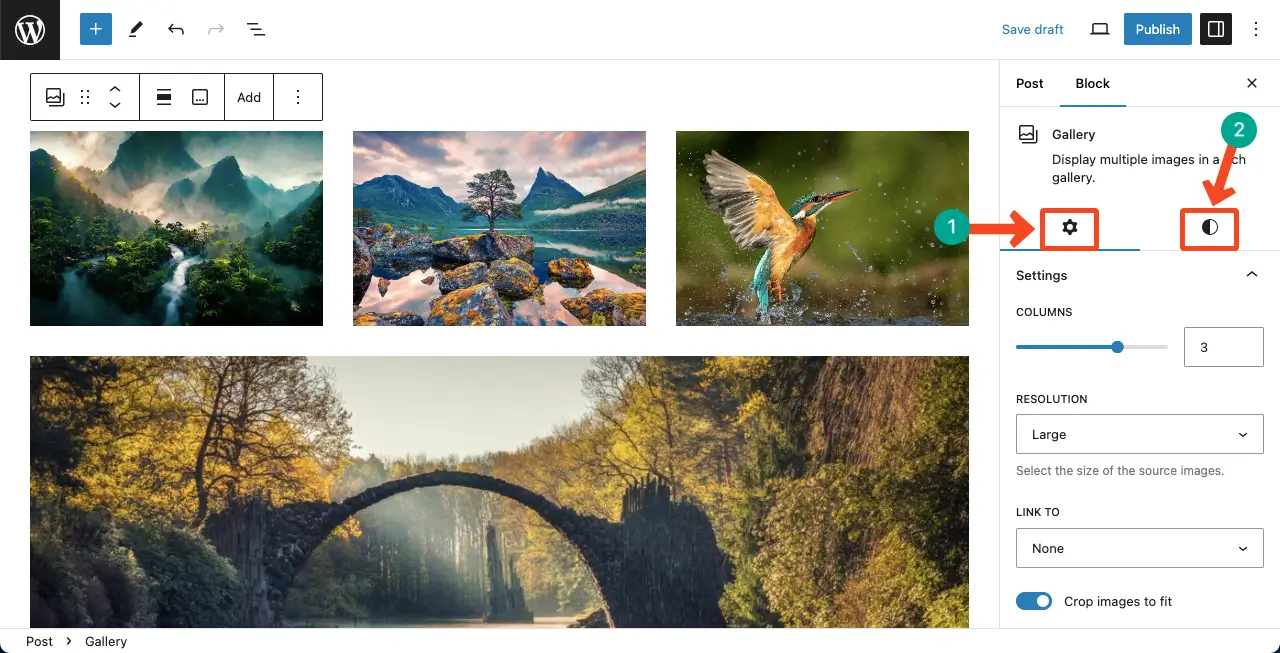
You can see that images have been added to the gallery. Next, you can customize the Image block using options from the Settings and Styles tab on the right sidebar.
Hopefully, you can do it alone, so I don’t go into details.
Method 3: Using the Galleryberg Plugin
If you’re looking for a more flexible and visually polished way to display images in columns or rows, the Galleryberg plugin is a fantastic choice. It’s a Gutenberg-native gallery block plugin that gives you multiple layout options – including Tiles, Masonry, Justified, and Square — all with built-in lightbox support.
Step 1: Install the Galleryberg Plugin
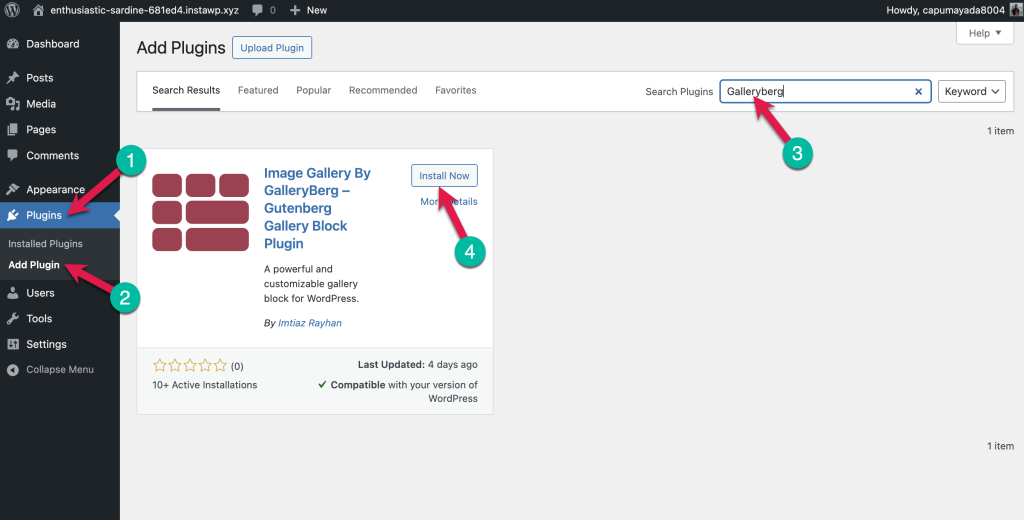
Go to your WordPress dashboard and navigate to Plugins > Add New. Then search for “Galleryberg” and install & activate the plugin.
Step 2: Add the Galleryberg Block
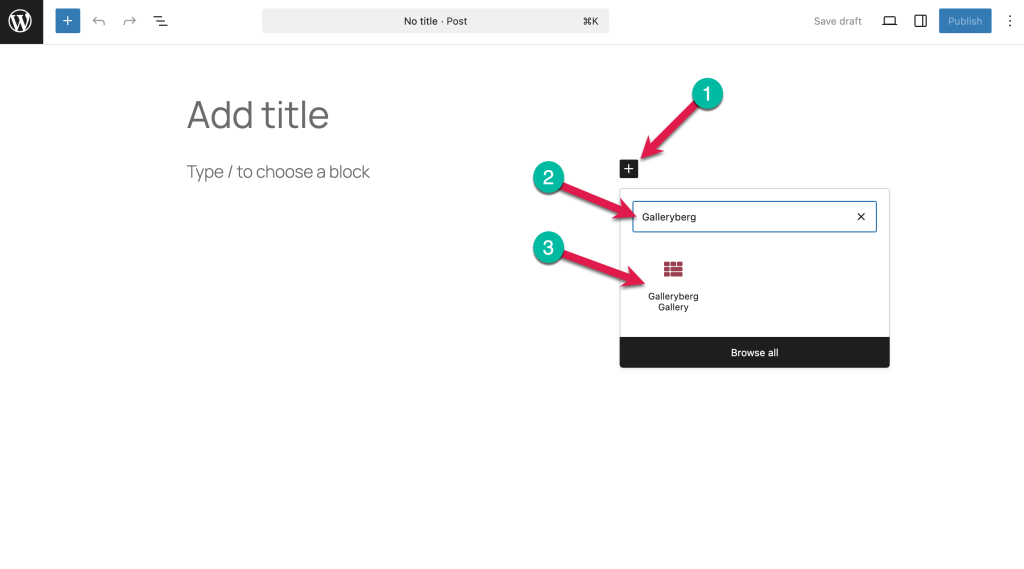
Open the page or post where you want to display the images. Then click the + button and search for the “Galleryberg” block. Add it to the page.
Step 3: Upload or Select Images
Use the media library or upload new images. You can rearrange images by drag and drop.
Step 4: Choose a Layout
From the block settings panel, select your desired layout:
- Tiles: Grid layout with equal spacing (ideal for rows & columns)
- Masonry: Pinterest-style stacked layout
- Justified: Neatly aligned rows of equal height
- Square: Perfect squares for uniform grid display
Step 5: Enable the Lightbox Option
In the block settings sidebar, toggle the Enable Lightbox option.
Your images will now open in a popup with smooth transitions, zoom effects, and slide navigation.