


スポーツリーグの順位表は、リーグ内のチームや選手の順位を発表するのに最適な方法です。ファンは、お気に入りのクラブの進捗状況を追跡したり、統計を比較したり、ランキングをわかりやすい形式で視覚化したりするのに役立ちます。.
スポーツウェブサイト、ブログ、またはスポーツ用品の販売を行っている場合でも、リーグテーブルを追加することで、コンテンツをより魅力的で有益なものにすることができます。.
このチュートリアルでは、~をご紹介します WordPressでリーグテーブルを作成する簡単な方法を2つ — を使用して Tableberg plugin.
- Method 1: 既製パターンをコピー&ペースト
- Method 2: 「リーグ Table」をゼロから作成する
方法1:既製パターンをコピー&ペーストする
すべてをゼロから構築したくないですか?
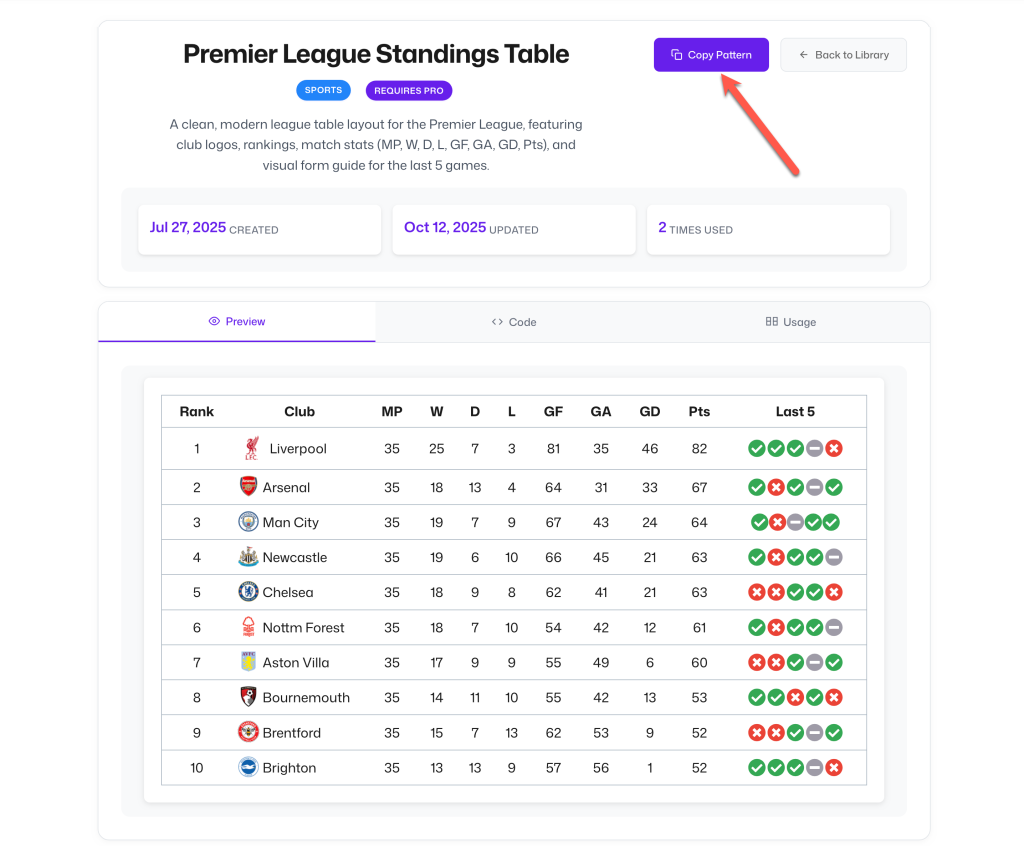
これで、美しいデザイン済みのものを瞬時に追加できます プレミアリーグ順位表 Table Tablebergの機能を使って、あなたのサイトに パターンライブラリ.
やり方はこちら 👇
手順 1:Tableberg Pro プラグインをインストールする
Tablebergには 無料版, 、〜が必要になります プロ版 既製のパターンにアクセスするには.
Tableberg Proを以下から入手してください 公式サイト, 、インストールして、 ライセンスを有効化してください.
ステップ2:パターンにアクセスしてコピーする
このリンクにアクセスしてください プレミアリーグの順位表における「Table」パターン してクリック “パターンをコピー” ページ上のボタン。パターンは自動的にコピーされます。.
ステップ3:WordPressブロックエディターにパターンを貼り付ける
それでは、リーグテーブルを追加したい投稿またはページを開いてください。.
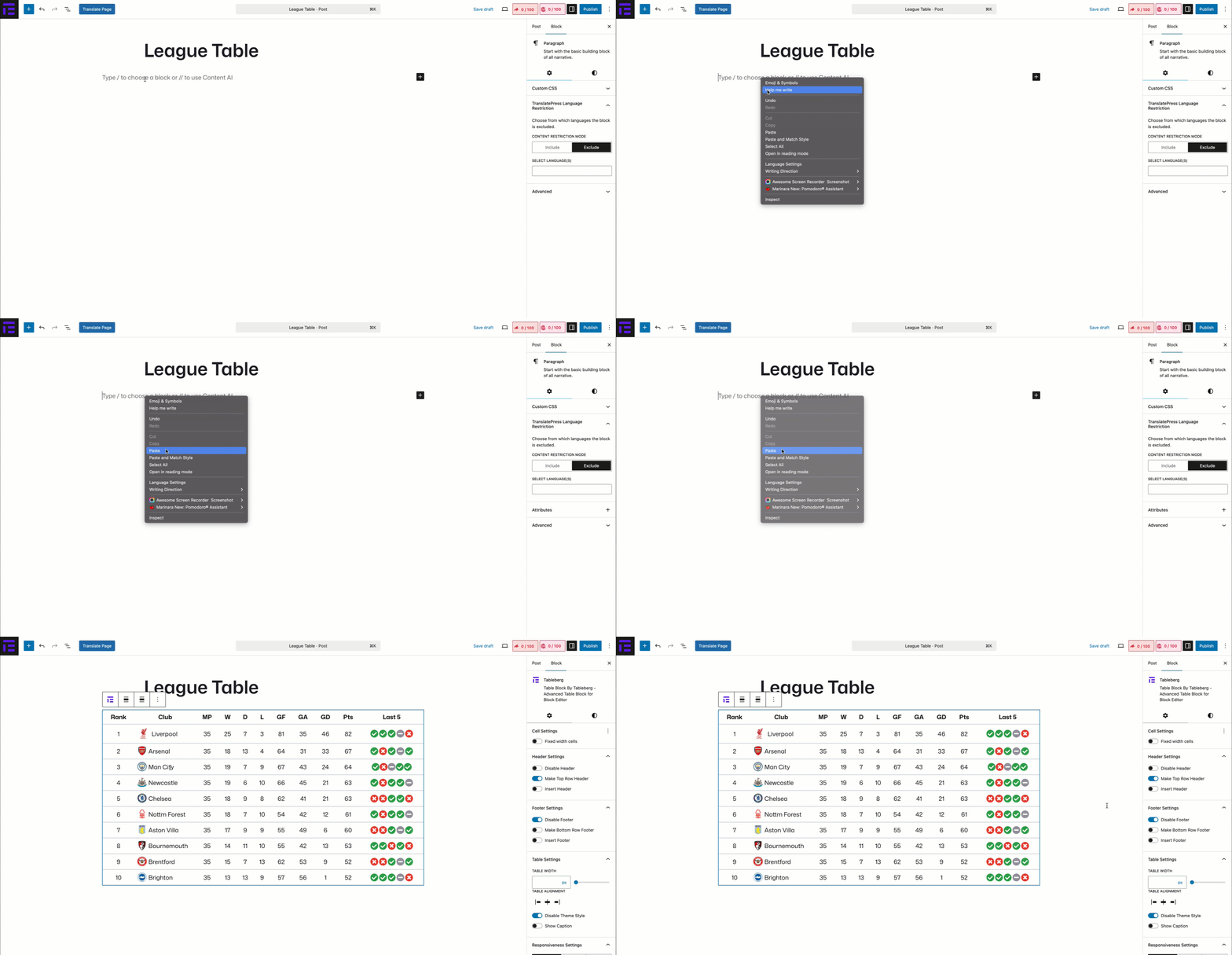
WordPressのブロックエディター(Gutenberg)で、テーブルを貼り付ける(Ctrl/Cmd + V)と、テーブル全体がすぐに表示されます。.
ステップ4:テーブルのカスタマイズ
簡単にできます
- チーム名とロゴを置き換えてください
- 試合統計を更新します(試合数、勝利数、敗北数、引き分け数、勝ち点など)
- サイドバーの設定から色、境界線、またはタイポグラフィを調整します
- 行または列を追加または削除します
それでー、あなたの League Tableは数秒で準備完了です 手動で構築せずに.
方法 2:リーグ「Table」をゼロから作成する
完全なコントロールを希望する場合や、独自のレイアウトをデザインしたい場合は、このステップバイステップの手順に従ってリーグテーブルを手動で作成してください。.
ステップ1:Tablebergプラグインのインストールと有効化
テーブルバーグ is an advanced table builder plugin. Without such an advanced tool, you cannot create comprehensive league tables with only the default WordPress table block.
プラグインをインストールするには プラグイン > 新規プラグインの追加.プラグインを入手するには、次のように入力します。 テーブルバーグ in the search box. Install and activate after it appears below.

ステップ 2: Tablebergブロックを投稿/ページエディタに追加する
Open the post/page where you want to create the league table. Find and Tablebergブロックを追加する by pressing the (+) icon.

Define the row and column number as you wish. For this tutorial, we’ll select the row and column number 6*11.
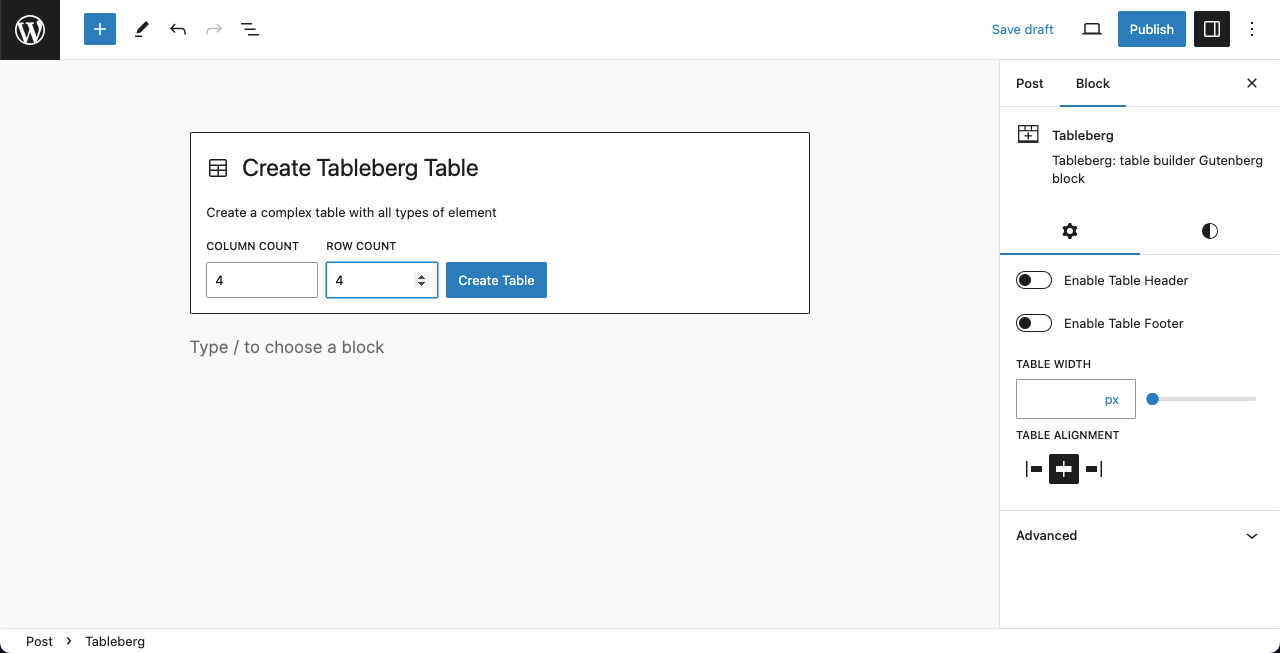
The table layout is ready. Next, we’ll add content to it.

ステップ3:テーブルにコンテンツを追加する
The type of content you add to the table depends largely on the sport type. Contents usually for a premier football league table are position, club logo, club name, game played, goal difference, そして points.
# Define Position (Pos)
The team with more points usually stays higher in the ranking. This section comes in the leftmost column of a table. You can see we have created this column on the table.

# Add Logo and Club Names
We want to bring the club name and logo under the same column title. So, the next top two column cells need to be merged. Select them by pressing Shift + Right Click (Windows) または CMD + Right Click (Mac).
Then, select Merge from the 編集テーブル option on the toolbar. Watch the video below. After that, we have centrally aligned the title.
Each cell comes with a Gutenberg block. By clicking the (+) icon, you can add other types of content to the table. For logos, we’ll select the image block.

You can see that we have added club logos to the table. No worries if the uploaded images are large in size. TableBerg allows you to customize them by dragging.

Next, add club names respectively next to the logo cells.

# Add Played Match Number, Goal Difference, and Points
This is simple. Similar to the position, you can add each club’s number of played matches, goal difference, and amount of points here as well, with plain text. You can see we’ve done it in the below image.

Step 04: Stylize the Table
With Tableberg, you can add various levels of stylization and customization to your table. With the Gutenberg toolbar, you can customize the alignment そして boldness of the content on the table.
You can see we have centrally aligned and applied boldness to most of the content on the table.
Next, you can change the text & background color, typography, font size, そして table dimension from the right sidebar. Hope you can do them yourself.

Step 05: Change the Table Width and Row Colors
If you have lots of content, you may want to increase the width of the table. Select the entire table by clicking the テーブルバーグ・アイコン on the toolbar consecutively thrice.
について 設定タブ will appear on the right sidebar, where you will find the Table Width option. You can increase the width of the table by setting the value here.

に来てほしい。 スタイルタブ. Immediately below, you’ll get options to change the background color of the even and odd row columns. Do it yourself.

Thus, you can create a league table in WordPress.
ビデオ・チュートリアル
Finishing Note!
Sports-loving people are always keen to know the updates of their favorite teams and players. You can create a table in WordPress and share its links on social media so people come to explore your site.
You can create tables for eCommerce products similarly with this plugin. Learn Tablebergで製品比較表を作成する方法.