


Comparison tables might seem simple on the surface, but they play a big role when it comes to helping users make decisions. By laying features side by side, these tables strip away the guesswork and help users see what sets each product or service apart.
You’ve probably seen them on product pages, blogs, SaaS sites, or comparison reviews. These tables work by listing features down the rows and placing each product or plan across the columns. With icons like checkmarks, dashes, or subtle color highlights, they make complex information easy to digest.
This post isn’t just a roundup of examples. It’s about understanding what makes comparison tables effective, where they work best, and how you can apply the same strategies. Let’s get going.
Real-World Feature & Pricing Table Examples
1. Dropbox
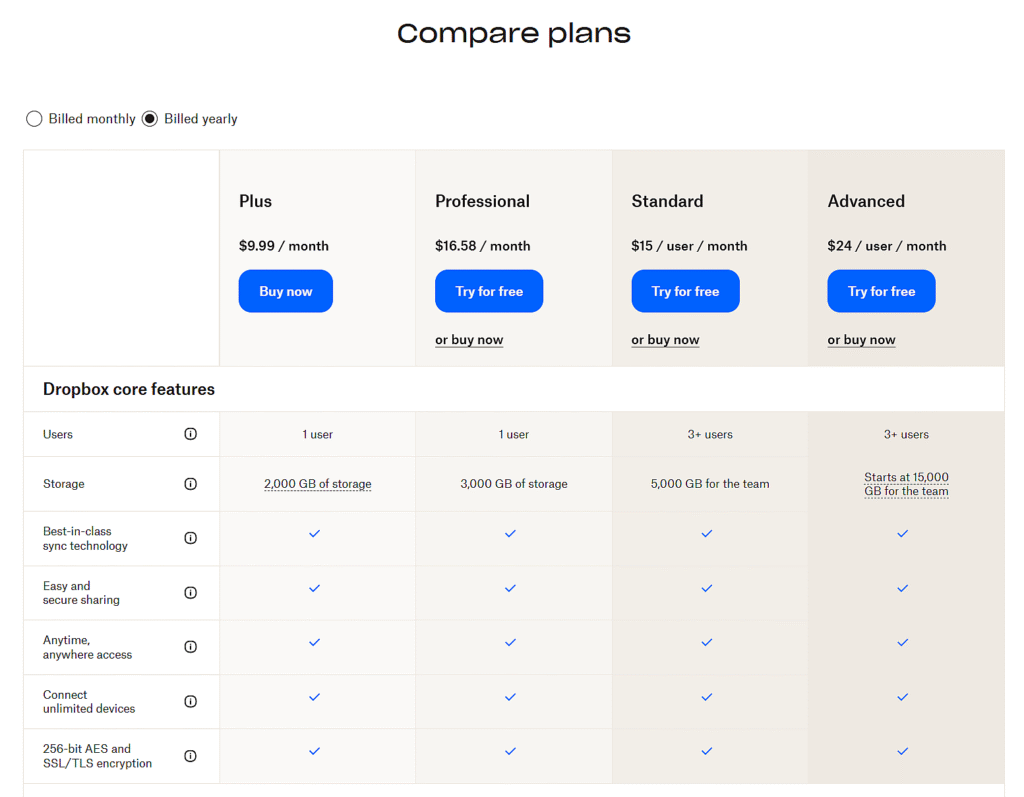
Feature and pricing comparison table
-
Simple layout with a toggle for billing cycles.
-
Side-by-side feature matching across all plans.
-
Uses text values alongside checkmarks.
-
Includes key specs like storage and user limits.
A great example of how to keep a comparison table clean and scalable, even with multiple plans. Subtle details like feature tooltips and fixed headers keep it user-friendly without being too minimal.
2. Grammarly
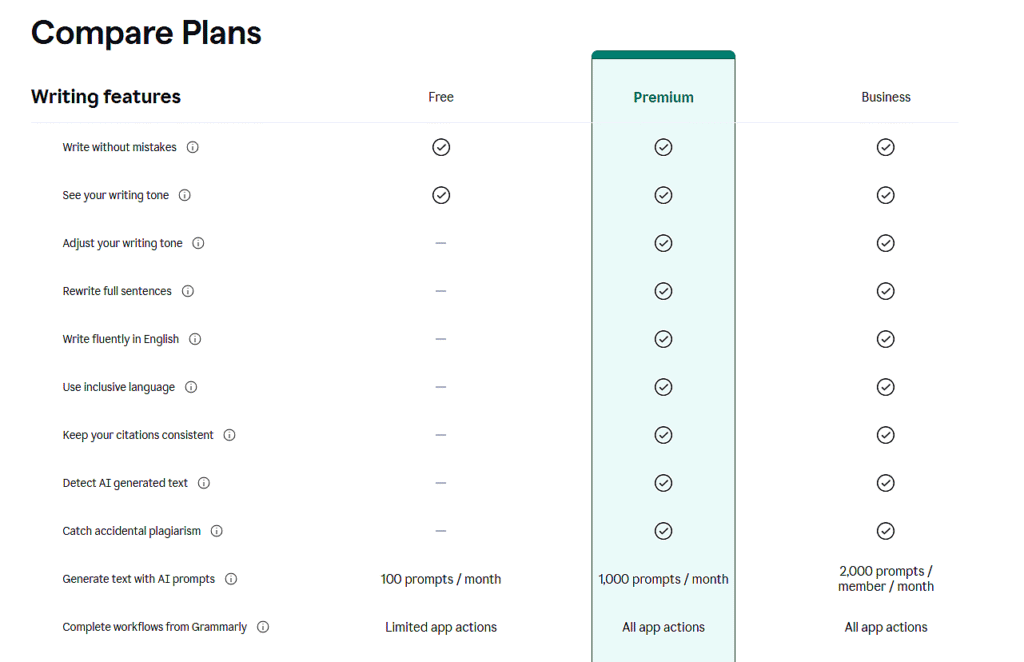
Feature comparison table
-
Clear visual focus on what each plan includes.
-
Consistent icon use with minimal design clutter.
-
Shows usage-based features like AI prompt limits.
-
Highlights the upgrade path through feature progression.
When you’re only comparing features, clarity wins. Grammarly nails this by showing exactly what upgrades unlock, using clean icons and structured rows without ever needing pricing clutter.
3. Intercom
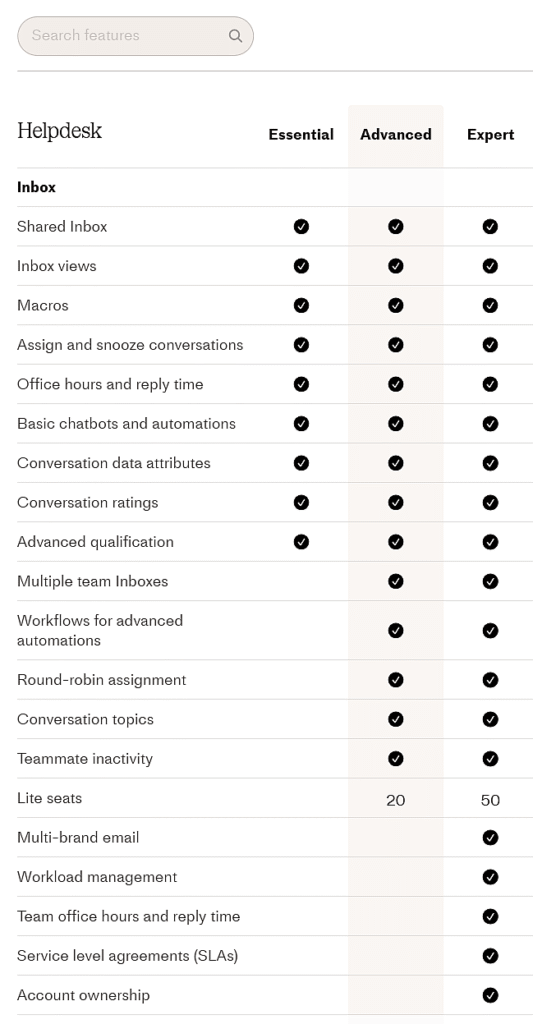
Feature comparison table
-
Organized by categories like “Inbox”.
-
Mix of checkmarks and numbers (e.g. seat limits).