
Creating data and information-rich tables is now super easy with テーブルバーグ. It allows you to create complex tables with graphics, buttons, and textual information to generate conversions.
このドキュメントの投稿では、Tablebergで最初のテーブルを作成する方法をステップバイステップで紹介します。
ステップ 01: TableBergプラグインのインストール #
こちらへ プラグイン > 新規プラグインの追加. Type テーブルバーグ in the search box. Once the plugin appears, install そして アクティブ化 それだ。

ステップ02: エディターにTablebergブロックを追加する #
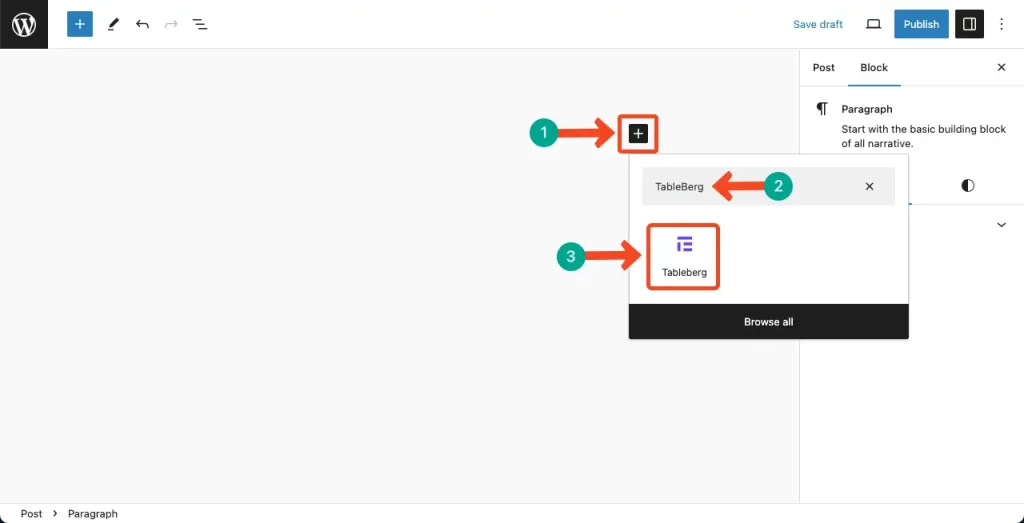
Open a post or page. Click the プラス(+)アイコン と入力する。タイプ テーブルバーグ in the search box. The block will appear instantly. Add the block to the editor.
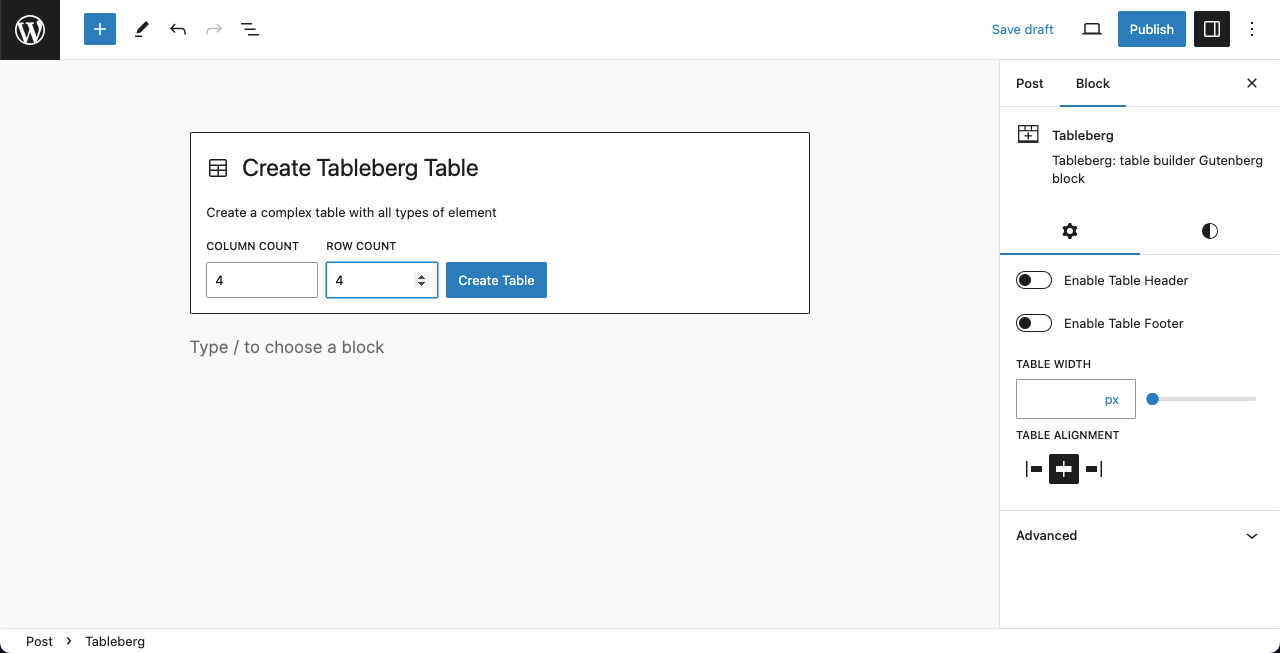
Set the number of columns and rows for the table. We’ll select 3*4 for the tutorial. Click the テーブル作成 button at the end.
Step 03: Start Adding Content to the Table #
TableBerg allows you to add text, images, buttons, icons, ratings, and more elements to the table.
Add Text Content
Place your cursor on the table cells and write as you want. See it in the video attached below.
Once the texts are added, you can customize their color, typography, そして dimensions from the right sidebar.

Add Images to the Table
You must add the イメージブロック to add images to the table. Like the Gutenberg editor, click the plus (+) icon on the cell where you want to add images.

You’ll get options to upload images from the local drive or from the media library.