


If you want to create a visually pleasing WordPress website, changing the background colors can help you highlight important content, create a clear visual hierarchy, and make your site more engaging. However, with so many blocks available in the WordPress Block Editor, it can be confusing to figure out how to change the background color for each one.
While some blocks come with built-in background color settings, others require a slightly different approach. The good news is that most WordPress core blocks support native background color customization, and for those that don’t, there are simple workarounds like the Group block and Cover block.
In this guide, we’ll walk you through three easy methods so you can confidently style any block on your site. We’ll cover blocks that support direct color changes, show how to use the Group block and explore the Cover block for advanced designs like hero sections and banners. Let’s get started.
Method 1: Direct Background Color (Native Support)
Many WordPress core blocks come with native support for background color changes. This means you can directly apply colors without adding extra blocks or custom code.
Step 1: Select the Block
Start by clicking on the block you want to customize within the editor. This will activate the block, and its settings will appear in the Block Settings panel on the right.
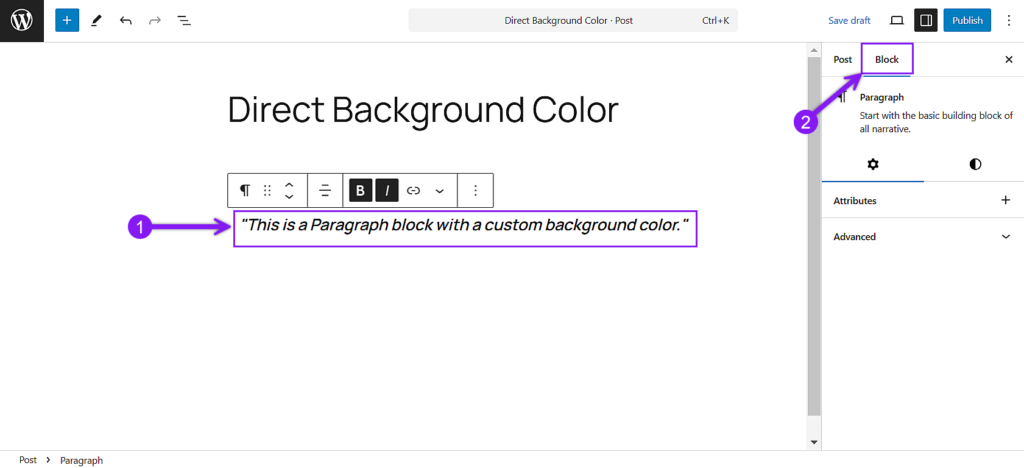
Step 2: Open the Block Settings Sidebar
If the settings panel isn’t already visible, click the Settings button located at the topmost corner on the right side of the editor. Under the Block Settings panel, locate the Styles section.
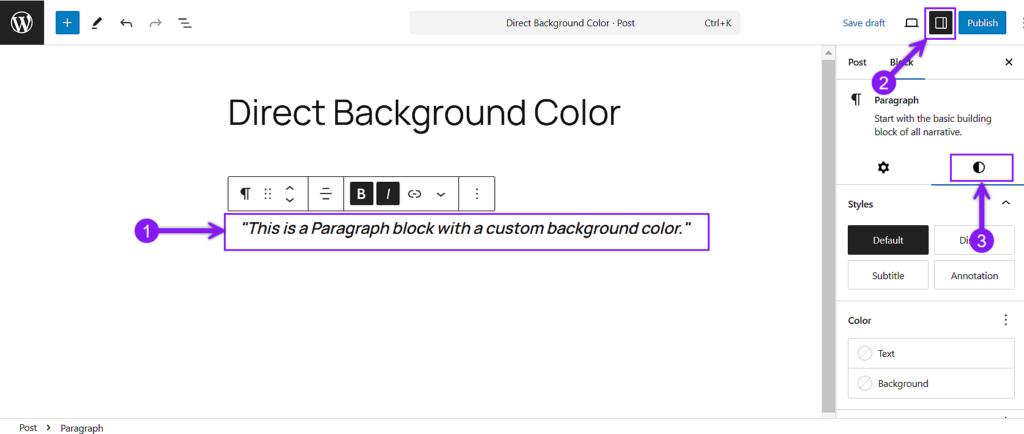
Step 3: Adjust the Background Color
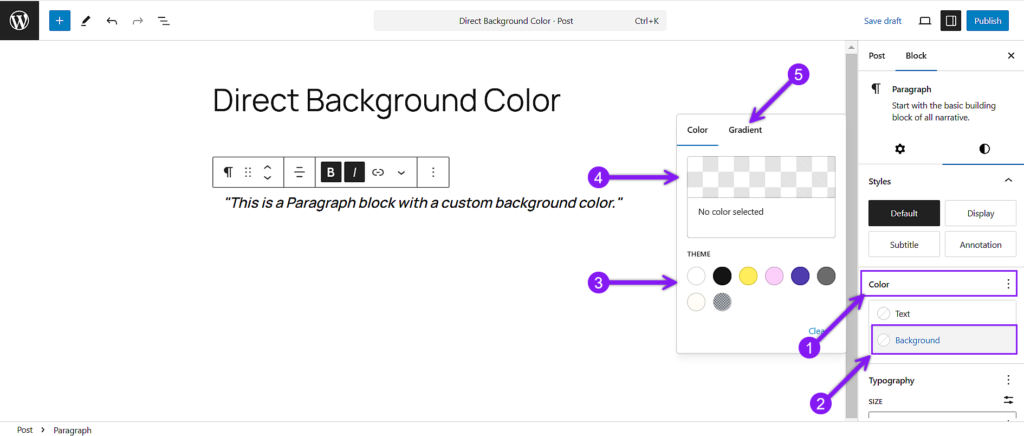
From the Styles settings panel, you will find the Color section. Under Color Settings, find Background. Now, just choose a color from the palette, work with the color picker, or enter a custom HEX/RGB/HSL code.
Applies to
-
Text & Content Blocks: Paragraph, Heading, List, Quote, Pullquote, Code, Preformatted, Verse
-
Layout Blocks: Group, Columns, Cover, Media & Text
-
Interactive/Widget Blocks: Buttons, Calendar, Latest Posts, Categories, Tag Cloud, Social Icons, Navigation, File, Audio, Video, RSS, Search, Login/Out, Page List
-
Site/Post Blocks: Site Title, Site Tagline, Post Title, Post Content, Post Excerpt, Post Date, Post Author, Post Categories, Post Tags, Comments, Next/Previous Post, Read More
-
Utility Blocks: Spacer (limited), Separator (limited), Table (entire table only).
Notes
-
Cover Block: Instead of a background, you’ll find the Overlay option. You can adjust overlay color along with opacity settings for layered effects.
-
Buttons Block: The background color applies to the button itself, while the text color option changes the button’s text.
-
Social Icons: The background color affects the icon container only.
-
Table Block:
-
To change the background color of the entire table, select the Table block and apply the color in the settings panel.
-
You can have different colors for rows, but it’s limited to the default option. Go to the Styles section and choose the Stripes option, but the stripe color is predefined and cannot be customized natively.
-
Method 2: Wrap in a Group Block
For blocks that don’t have native background color options, such as media, legacy, or utility blocks, you can use a Group block to act as a flexible container. By wrapping content inside the Group block, you can apply background colors to the entire section.
Step 1: Identify and Target the Specific Block
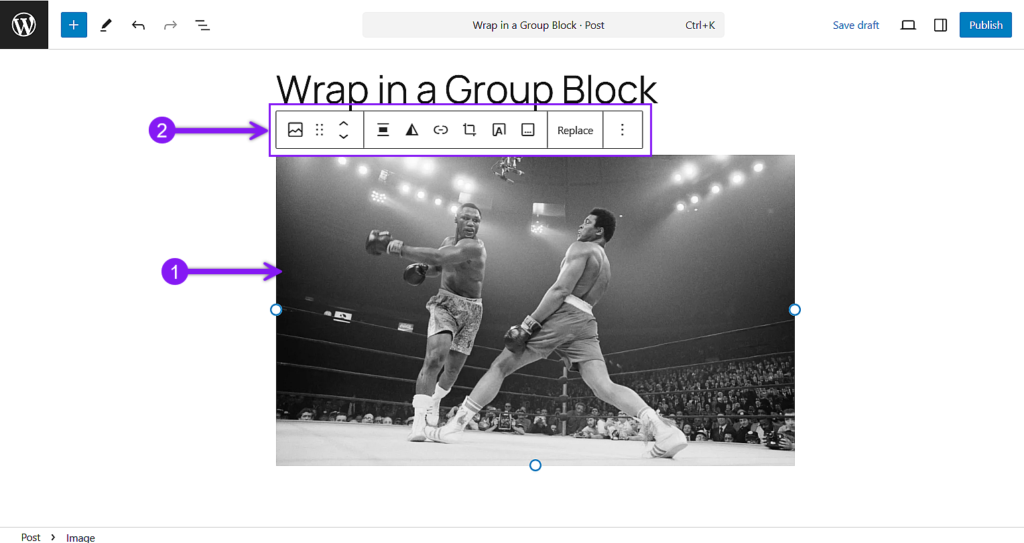
Click on the block that doesn’t support the background color directly. Once you do that, it will pop up the block toolbar above that particular block.
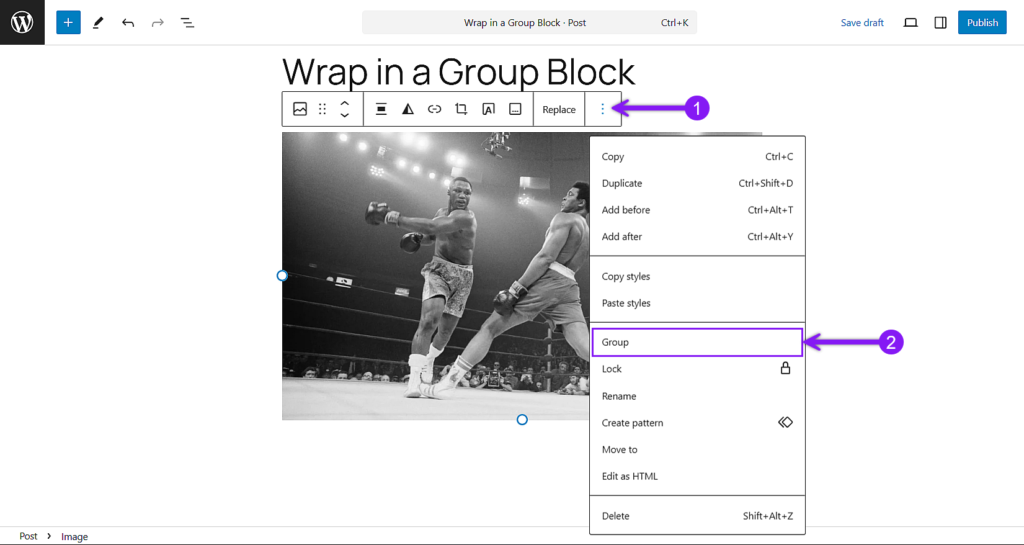
Step 2: Group the Block
Now, click the Options menu (three dots) on the far right in the block toolbar, and select Group from the dropdown menu. This wraps the selected block inside a Group block.
Step 3: Select the Group Block
Click on the outer edge of the Group block, and as the toolbar appears, select the parent group block on the far left. This will highlight the whole section.