Humans are wired to compare. It is how we navigate uncertainty. We weigh options to avoid regret and seek confirmation that we are choosing wisely. When we reach a decision point, we dissect, contrast, and question. Without a clear way to evaluate differences, our doubt grows. And doubt is the enemy of action.
When users land on your site to compare products, plans, or services, they hunt for proof. Proof that one option crushes the others. Proof that their time and money won’t be wasted. What else do they want? They want ruthless honesty, they want to see flaws laid bare, not hidden, they crave contrasts sharp enough to slice through marketing fluff.
This is why WordPress sites use different types of comparisons depending on what the reader wants to resolve. In the sections ahead, this guide will show you how to build a perfect feature comparison table in WordPress.
- Standard Types of Feature Comparison Tables
- Create a Feature Comparison Table
- Step 1: Install and Activate Tableberg
- Step 2: Insert the Tableberg Block
- Step 3: Add Column Headers for Comparison Options
- Step 4: Enter Feature Names in the First Column
- Step 5: Fill Each Cell with Feature Values or Content
- Step 6: Customize Table Styles
- Step 7: Make the Table Responsive
- Step 8: Enable Sorting and Search Options
- Step 9: Preview and Publish the Table
- Skip the Setup with a Ready-Made Template
Standard Types of Feature Comparison Tables
Comparison tables come in different forms depending on what users want to figure out. Sometimes they care about price. Sometimes it’s missing features. What matters is using the right structure for the right decision.
Pricing Comparison Table
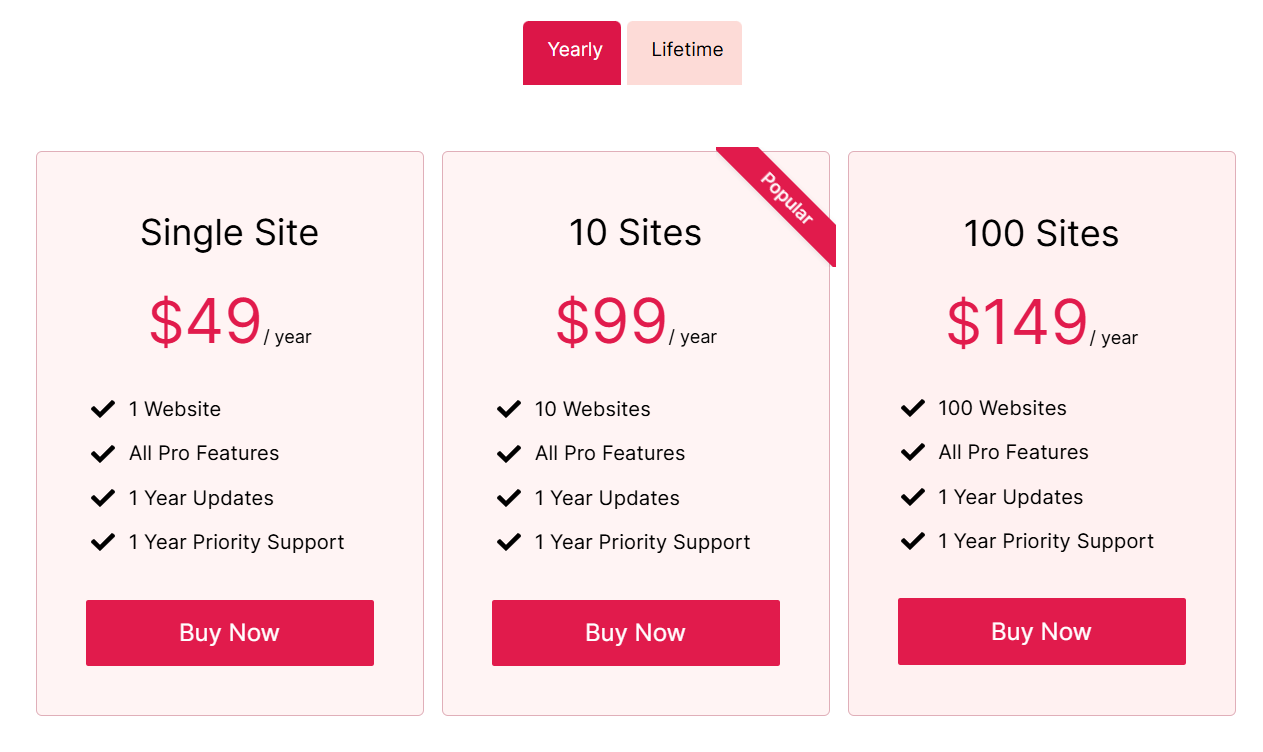
This format compares plans side by side. Rows list features. Columns show each tier. Checkmarks or values reveal what’s included. It’s built for buyers deciding what they can get for the price.
Product Specification Table
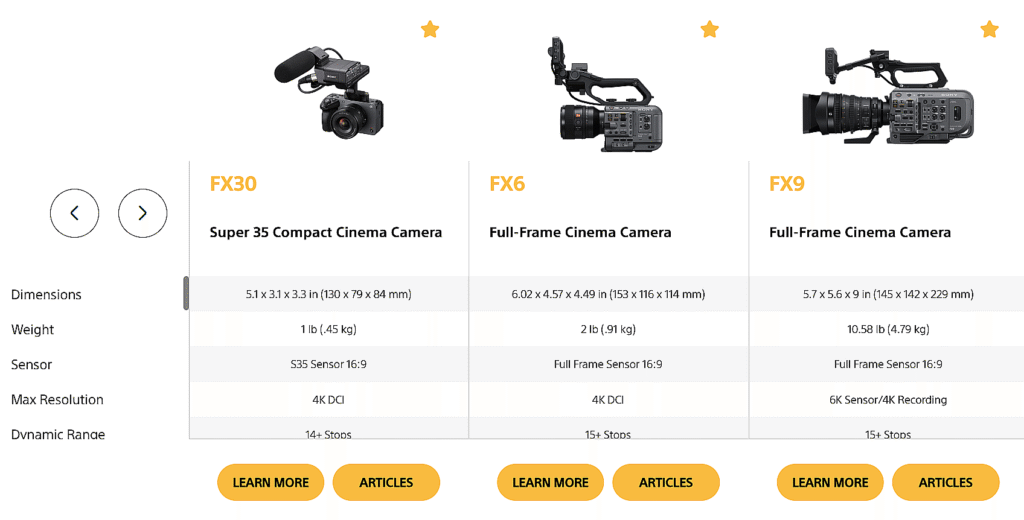
Great for tech products with measurable specs. Each row defines a specific specification, and the adjacent cell provides the value for that product. Categories like Display, Battery, or Performance are often grouped to make scanning easier.
Feature Availability Matrix
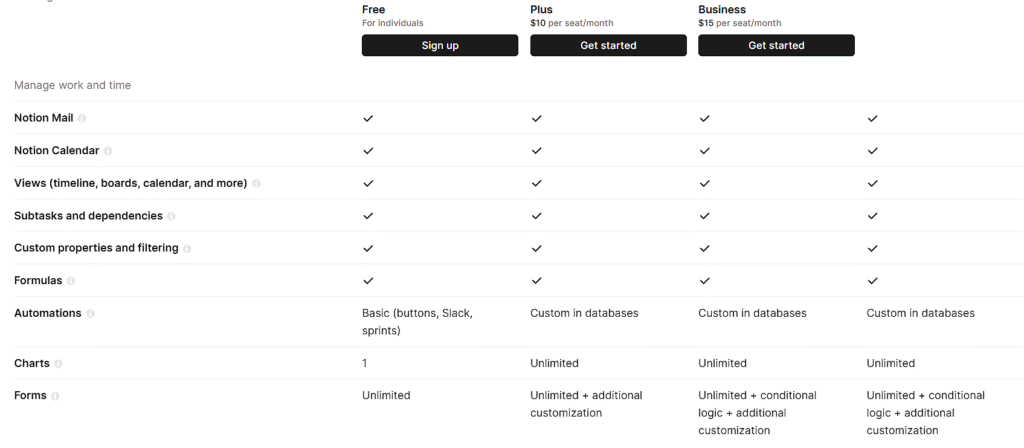
Used when users just want to know “Does this have it or not?” Features are listed as rows, and the compared options appear as columns. Cells typically show checkmarks, text indicators, or numeric limitations.
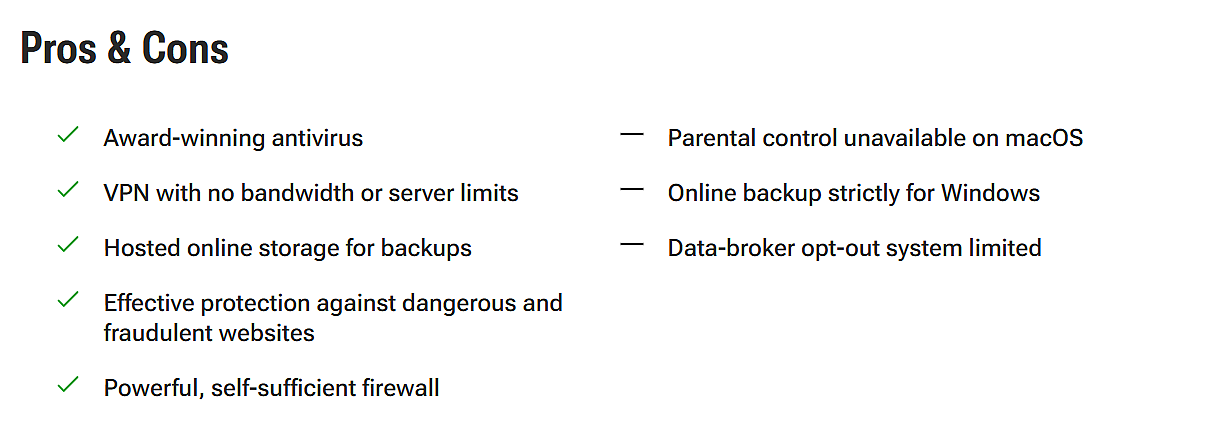
Pros and Cons Table
Not everything can be measured. Sometimes it’s about tradeoffs. This format gives each tool a short list of what it gets right and where it falls short.
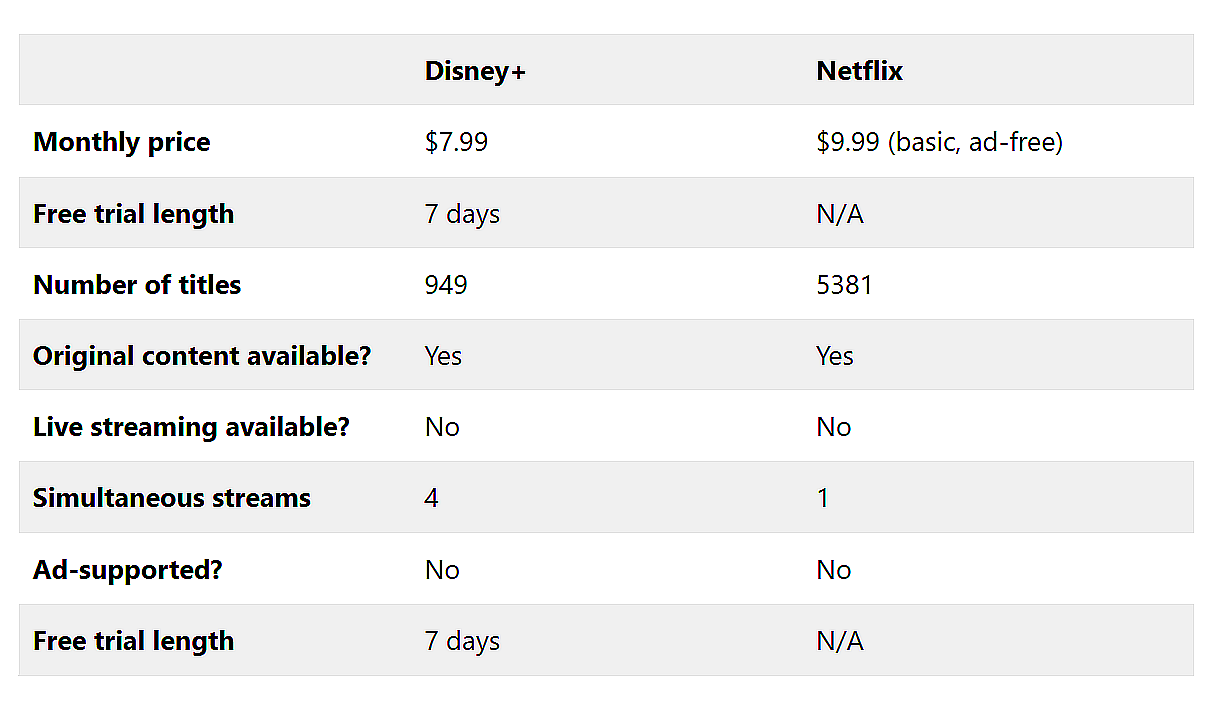
One-to-One Comparison Table
Designed for comparing two alternatives directly. Each column represents one option. Rows describe specific attributes like support, pricing, or integration. This structure highlights how two solutions differ in a controlled layout.
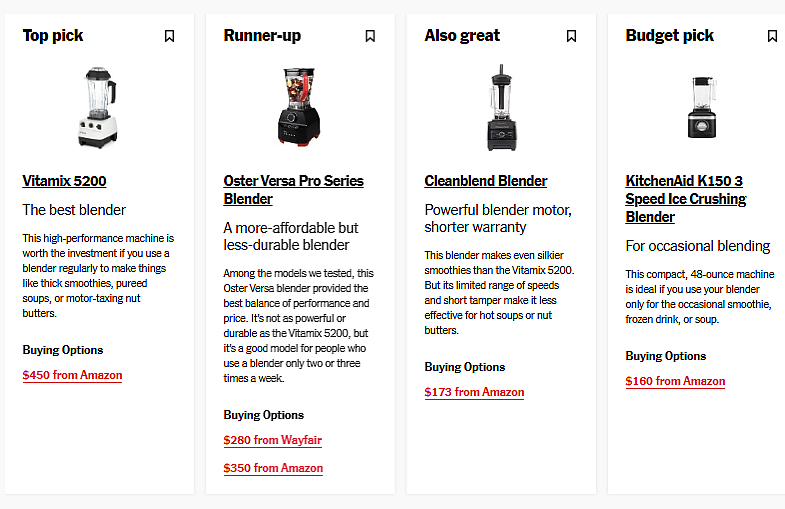
Multi-Product Comparison Table
Meant for broad evaluations where readers are exploring several products at once. Each product appears as a row. Columns are used for key features, use cases, or rankings. This layout supports quick scanning and comparison across multiple criteria.
Create a Feature Comparison Table
The default Table block in WordPress lacks the flexibility needed for serious feature comparisons. If you need multiple content types in one cell, want better control over design, or plan to compare more than two products cleanly, you need a block-based table plugin. Tableberg is built exactly for that purpose.
Step 1: Install and Activate Tableberg
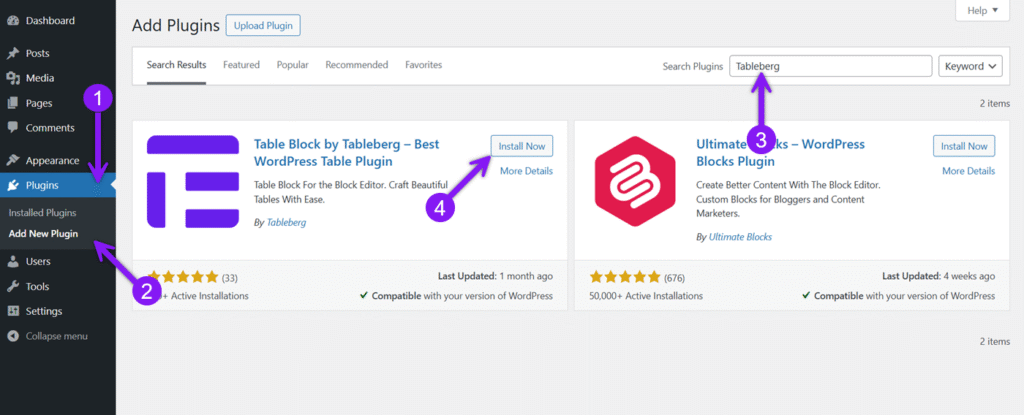
Go to Plugins → Add New in your WordPress dashboard. Search for “Tableberg,” then click Install and Activate. The block will now be available in your editor.