


WordPress block editor is like any other page builder that lets you create and design amazing content and web pages for your website. It is built into WordPress, so anyone can create a website from scratch.
The Gutenberg Block Editor, aka block editor, is the new editor that has replaced the old classic editor. The block editor works differently from the classic editor.
WordPress Block Editor! What’s that?
WordPress Block Editor is the new default blocks-based default editor. Blocks are like the content elements required to build a website or content.
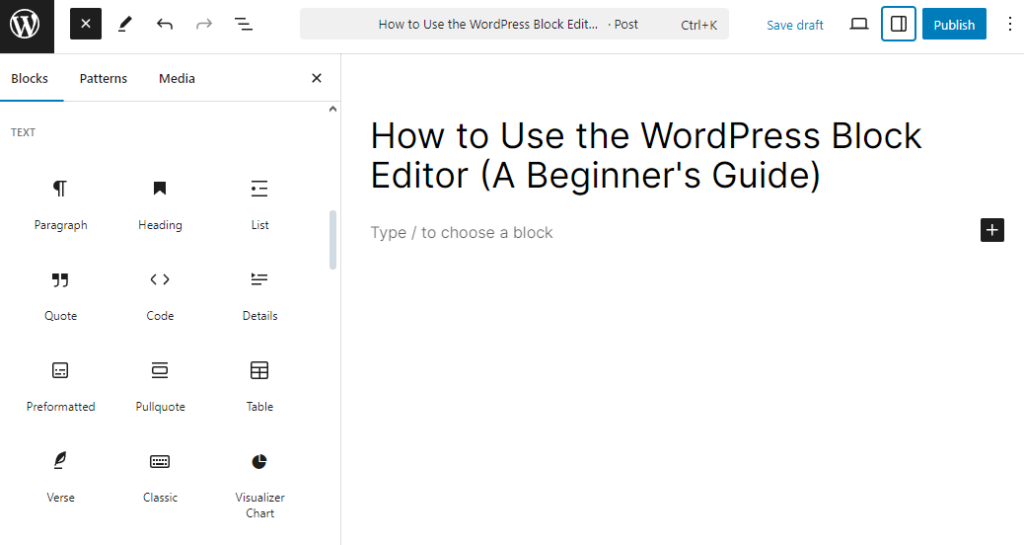
It offers a modern, block-based approach to content creation, making designing and formatting pages and posts easier without requiring extensive coding or third-party tools.
Block Editor Interface
Let’s look at the Gutenberg Block Editor interface and its functionality.
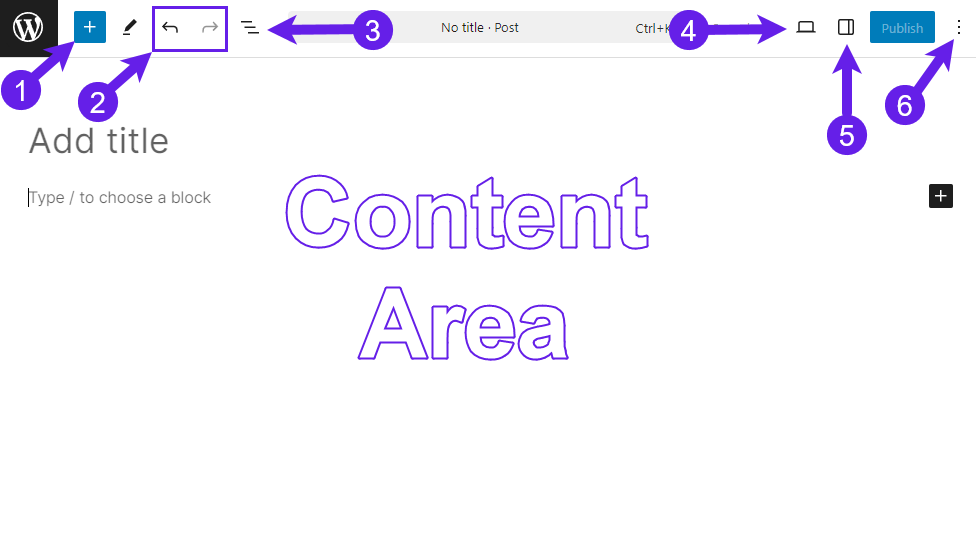
Here’s a quick run-down of the elements of the Gutenberg editor interface:
- Add Block
- Redo/Undo Button
- Document Overview
- View
- Settings (Blocks & Post)
- Options for Editor
There are even more. Check out the image below.
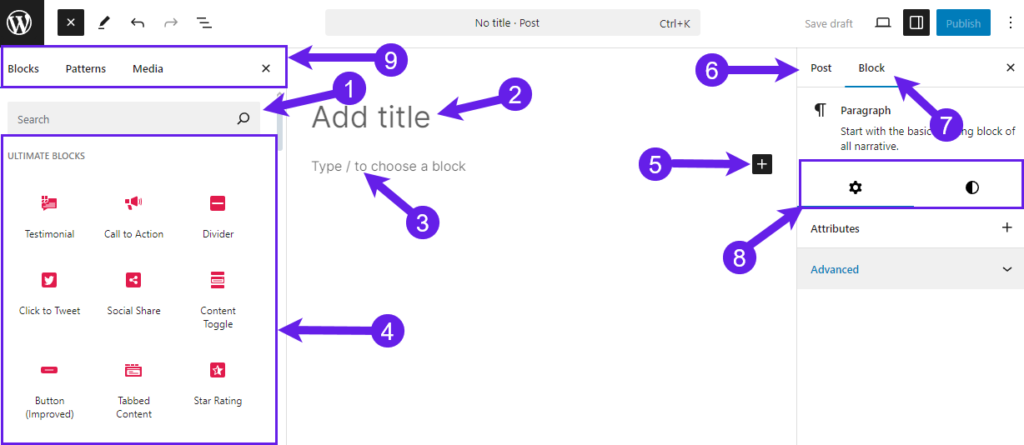
- Search Bar Option
- Add Title of the Post or Page
- Add Blocks in the Content Area
- Installed & Core WordPress Blocks
- Add Block Button
- Options for Posts & Pages
- Block Options
- Block Styles & Settings
- Blocks, Patterns, & Media
Now that you are familiar with the block editor interface, let’s look at the blocks that come with Gutenberg.
Core WordPress Blocks
Since Gutenberg Block Editor is block-based, let’s learn what blocks come with the Block Editor and what they do exactly.
Content Blocks
These blocks are the foundation for creating text-based content:
-
Paragraph: This is for adding regular text with formatting options.
-
Heading: For creating headings with six levels (H1 to H6).
-
List: Adds ordered (numbered) or unordered (bulleted) lists.
-
Quote: Format text as a blockquote with optional citation.
-
Code: Displays raw code snippets in a formatted block.
-
Preformatted: Adds text with preserved spacing and alignment.
-
Table: Creates simple tables for data presentation.
-
Verse: For poems or other preformatted text with special spacing.
Create Beautiful Tables
With Block Editor

Media Blocks
These blocks allow you to embed and display various types of media: