


A content box is a visually distinct container by which you can frame specific content that makes it stand out from the rest. It helps you highlight key feature information or special announcements, drawing users’ attention to important details.
Content boxes are suitable to showcase call-to-action sections, testimonials, reviews, and key features of products or services. There are several ways to create content boxes in WordPress websites.
In the following write-up of this article, we’ll show you three handy methods of how to create content boxes in WordPress. Be with us till the end.
|
Method |
Plugin |
Preview |
|---|---|---|
|
Not Required |

| |

| ||

|
Method 1: Using the Columns Block
You can create and design a basic-level content box using the default WordPress Columns block. Follow the steps explained below.
Step 01: Add the Columns Block to the Editor
Find the Column block from the Gutenberg block library by pressing the plus (+) button and add it to your editor.
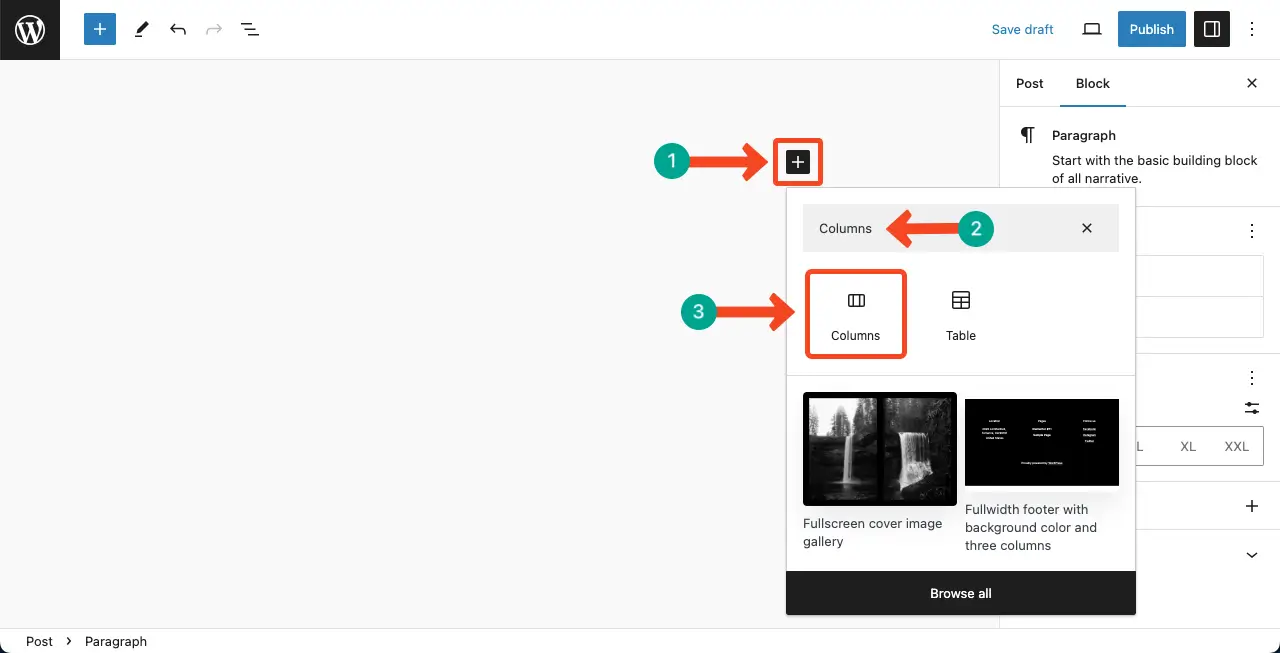
Select the one-cell column from the available options.

Step 02: Add Content Blocks to the Column
The Columns block will allow you to add other blocks as well inside it. You can add any block you want to curate your content.

Click the plus (+) icon on the column block. It will open the Gutenberg block library, from which you can choose and add the paragraph block.

We can see we have already added text content to the column block. After that, you can add more blocks to the columns as you want. Suppose we’ll add the Image block.
Click the Columns icon on the toolbar. Hit the plus (+) icon. Find and select the Image block from the library.

You can see we have added an image to the columns block.
