
Creating data and information-rich tables is now super easy with Tableberg. It allows you to create complex tables with graphics, buttons, and textual information to generate conversions.
In this documentation post, we’ll show you a step-by-step guide on how to create your first table with Tableberg.
Step 01: Install the TableBerg Plugin #
Go to Plugins > Add New Plugin. Type TableBerg in the search box. Once the plugin appears, install and activate it.

Step 02: Add the Tableberg Block to the Editor #
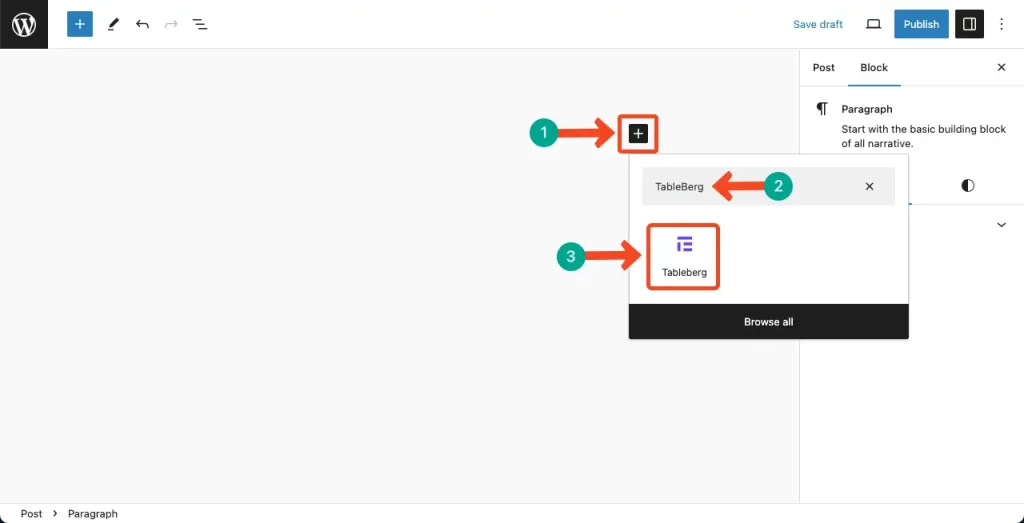
Open a post or page. Click the plus (+) icon on the editor. Type Tableberg in the search box. The block will appear instantly. Add the block to the editor.
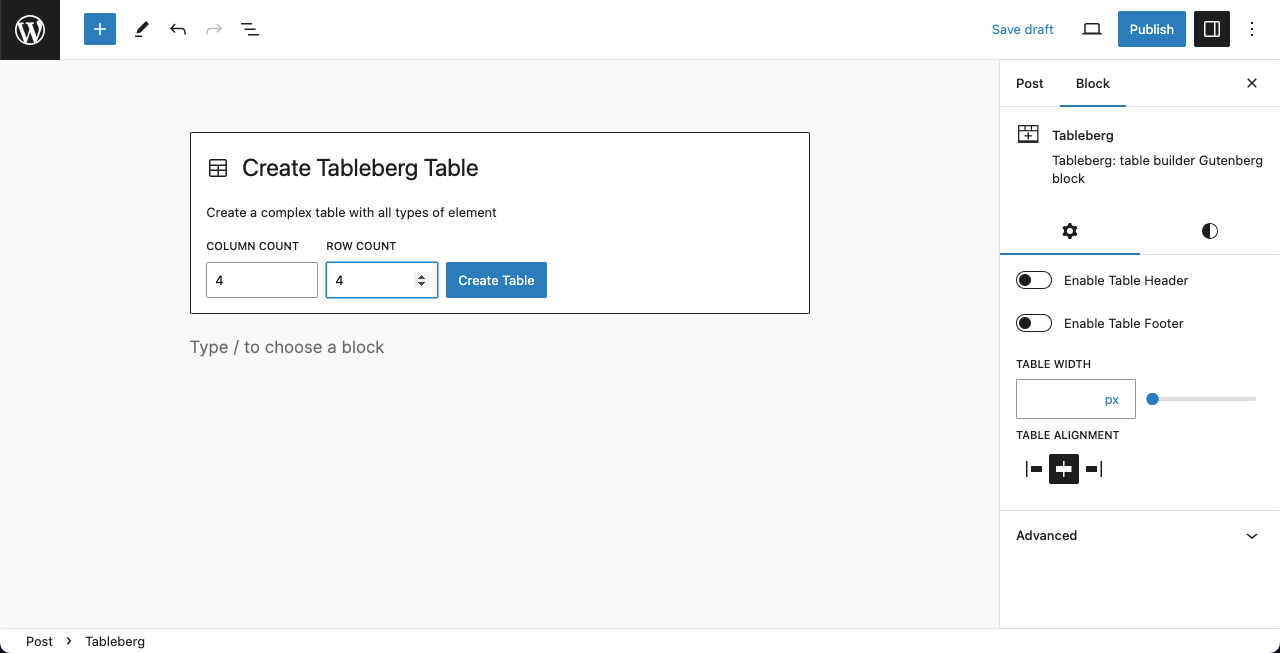
Set the number of columns and rows for the table. We’ll select 3*4 for the tutorial. Click the Create Table button at the end.
Step 03: Start Adding Content to the Table #
TableBerg allows you to add text, images, buttons, icons, ratings, and more elements to the table.
Add Text Content
Place your cursor on the table cells and write as you want. See it in the video attached below.
Once the texts are added, you can customize their color, typography, and dimensions from the right sidebar.

Add Images to the Table
You must add the Image block to add images to the table. Like the Gutenberg editor, click the plus (+) icon on the cell where you want to add images.

You’ll get options to upload images from the local drive or from the media library.

We’ll add an image from the Media Library. Once the image is marked, click the Select button.

The image will instantly be added to the table. In the same way, add images to the other cells.

Add Bullet Lists to the Table
In the same way, find and add the List block to the table.

With the List block, you can list the product features in the table.

Add Buttons to the Table
Add the Button block to your suitable cells in the table.

Add a copy to the button that will trigger users.

Now, link the button with your desired destination post/page. After that, you can customize its text color, background color, hover color, and typography.

In the same way, add buttons to the other cell.